← All manuals
How to request an app
Missing an app? Request it in a few taps. It's usually available in under a minute.
Last updated
Request an app in 3 steps
-
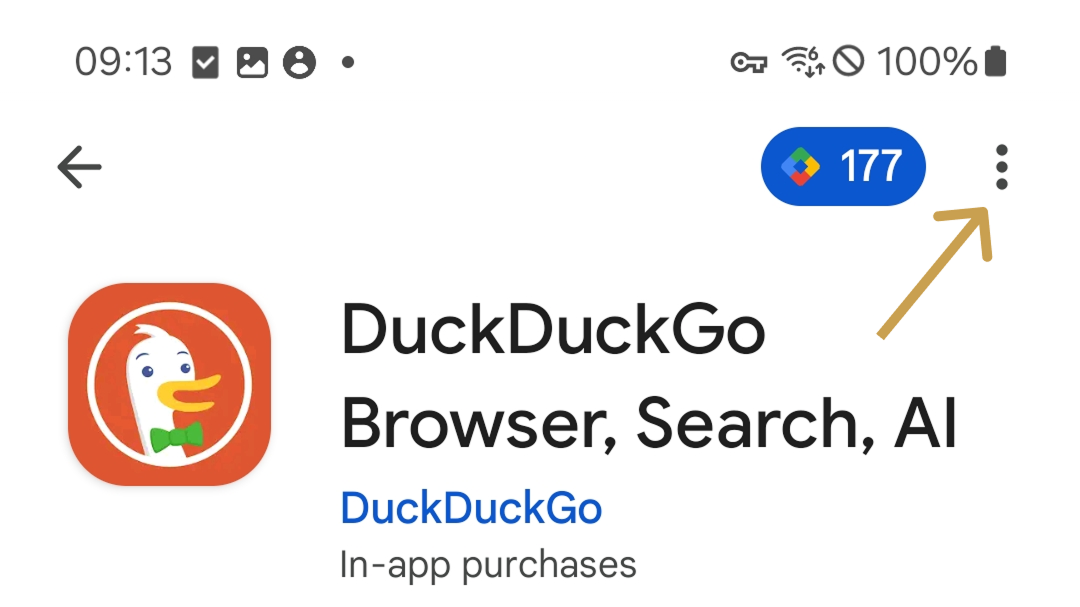
Open the app's page in the Play Store or F-Droid, then tap the three dots (⋮) in the top right.
-
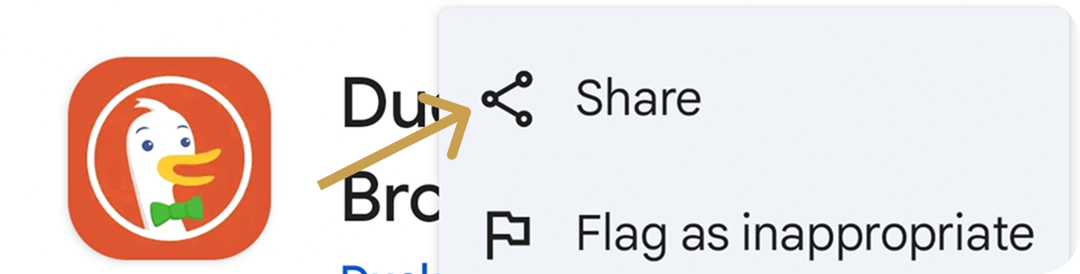
Tap Share.
-
Pick StoicOS in the share sheet. That sends your request.
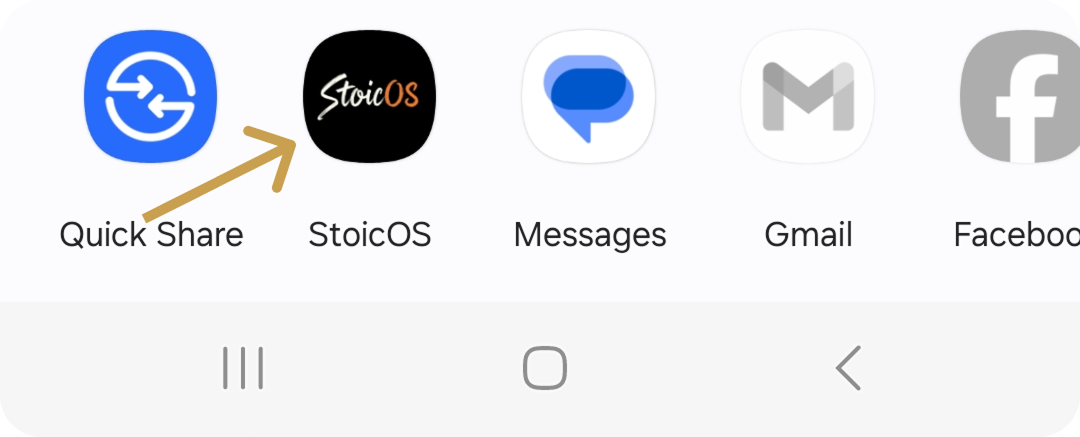
In F-Droid it works the same way: open the app's page, tap Share and pick StoicOS.
What happens next
- Automatic check: StoicOS checks every request against its content policy straight away.
- Approved: if the app passes, it shows up in your store a moment later.
- Declined: if the app doesn't fit the policy, the request is declined.
- Team review: our team also looks at every request. Approved apps go into the store for all StoicOS users.
You can see the status of each request in the Requests tab of the StoicOS store.
If a request doesn't go through
- You blocked the app's category. Unblock the category in your StoicOS settings to make the app available.
- You sent too many requests. There's a limit on how many requests you can send and how many can wait at the same time. Wait until your open requests are done, then try again.